Enrolling tvOS devices
Related Video: Apple Device Enrollment Program
There are three ways to enroll an Apple TV into KACE Cloud:
- Enroll a tvOS device with Apple DEP
- Enroll a tvOS device with Apple Configurator 2
- Enroll a tvOS device with Apple Configurator 2 and add to Apple DEP
If you have no previous experience with Apple DEP, see About the Apple Device Enrollment Program.
Enroll a tvOS device with Apple DEP
Full instructions for DEP Enrollment can be found in Enrolling Apple devices in KACE Cloud with Apple DEP.
If the device is already in the DEP program:
- Assign the device to the server linked to your KACE Cloud portal.
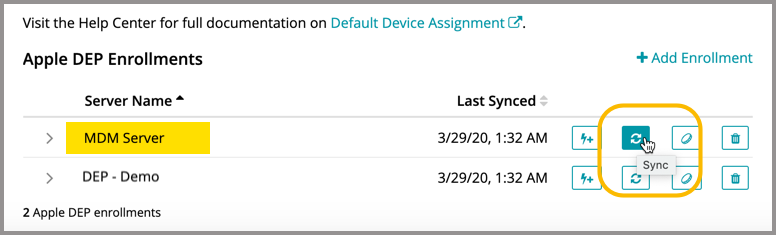
- Re-synchronize the portal to your DEP profile.
- In KACE Cloud: Assign the Apple TV to the appropriate DEP profile.
If the Apple TV is already set up:
- Go to General Settings in the right panel of the Apple TV.
- Select Reset and Update.
This action applies the DEP profile assigned to the device.
Enroll a tvOS device with Apple Configurator 2
To enroll an Apple TV without DEP, the device must be connected to the network using Ethernet (not Wi-Fi). The Mac computer running Apple Configurator can be connected to the network using Wi-Fi.
- Download and open Apple Configurator 2 (AC2).
- Attach the target tvOS device to your computer using a USB cable.
- Open the Apple Configurator 2 dropdown menu.
- Select Paired Devices to open the dialog window.
- Right-click the Apple TV icon that appears after pairing on the main AC2 page and select Prepare.
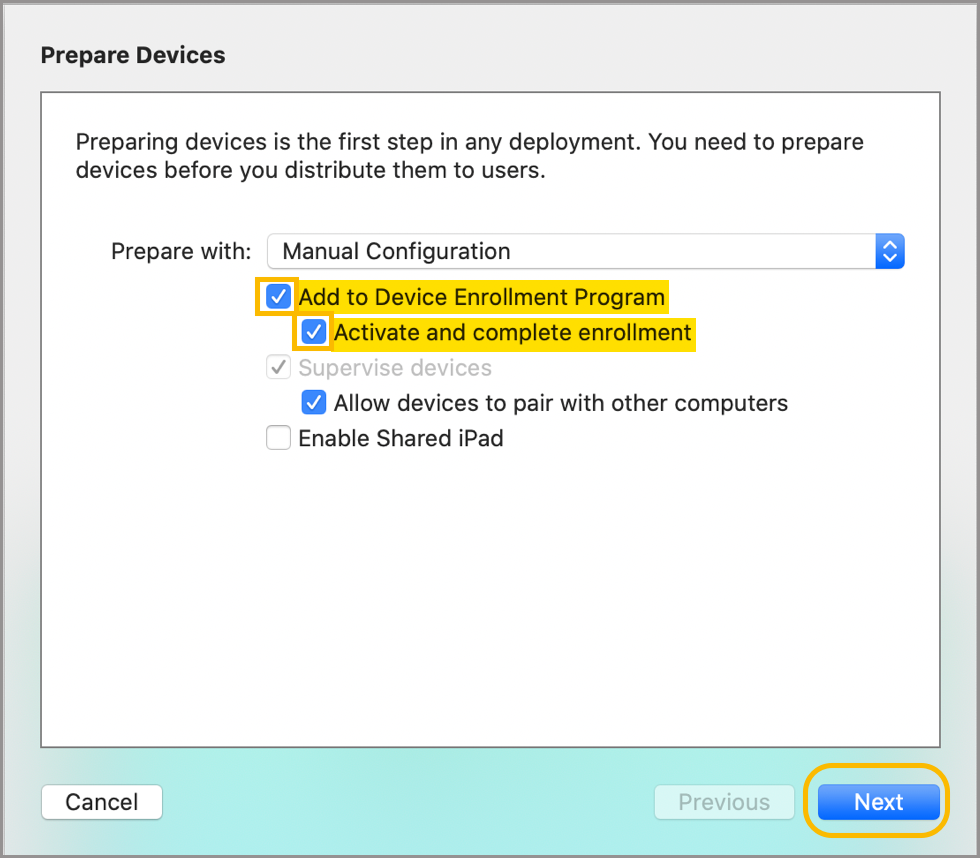
The Prepare Devices window appears (see below). Confirm that Add to Device Enrollment Program is cleared.
- Click Next.
.png)
When paired, the Apple appears in the All Devices section of AC2.
- Select an existing server or specify a new server.
-
You can also email these instructions to the user and have them complete the procedure. Alternatively, send an enrollment URL to the device user to initiate enrollment, or provide the URL with instructions by email. The administrator can assemble the enrollment URL using the following syntax:
- https://yoursubdomain.enroll.kacecloud.com
- https://yoursubdomain.enroll.westeurope.kacecloud.com (
westeuropedata centers only.)
- To specify a new server, enter your enrollment URL.
The enrollment URL can be found in the KACE Cloud Enroll Devices view, accessible by navigating to Devices > Enrollment Options > Enroll Devices > tvOS.
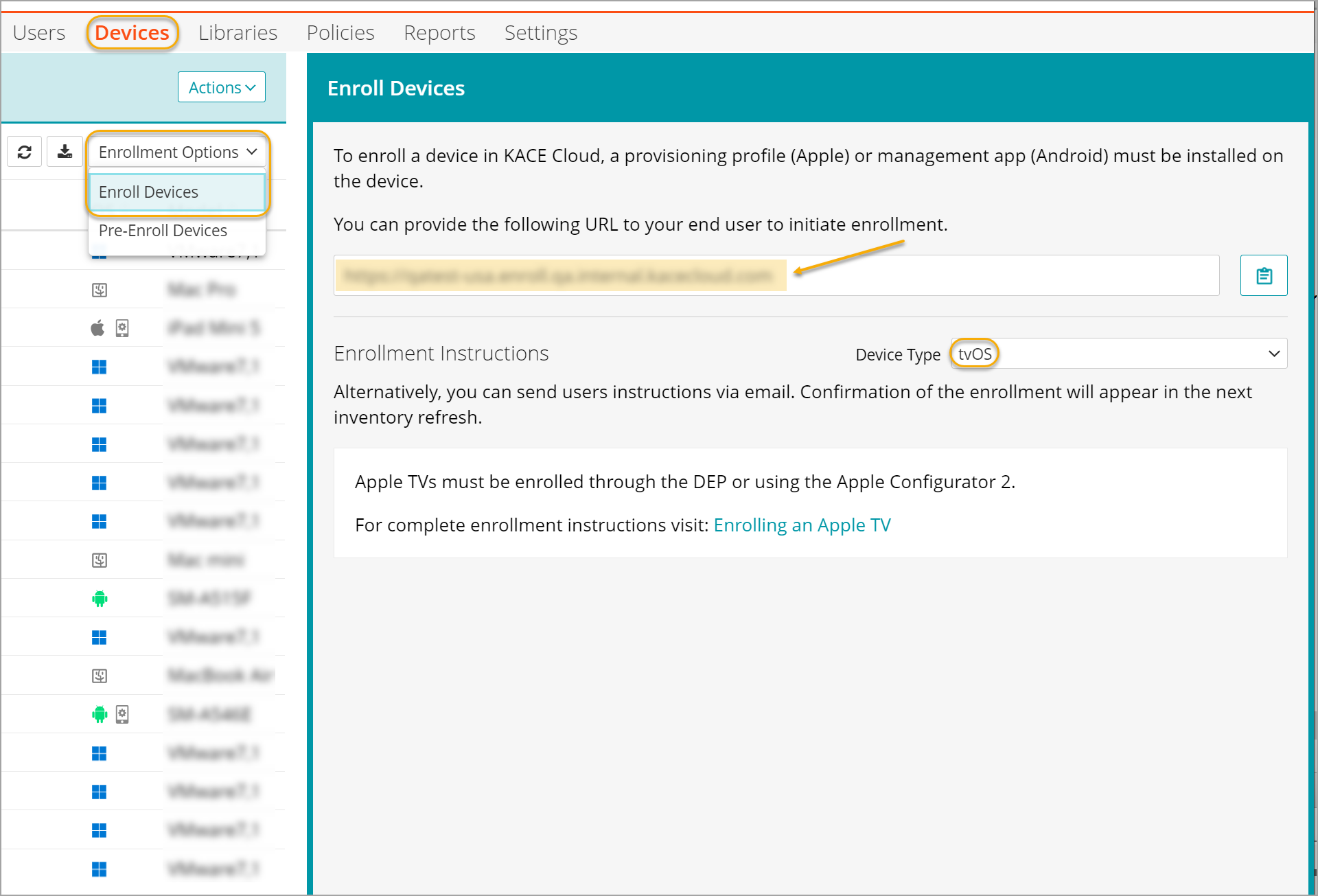
The enrollment URLcan also be assembled using the following syntax:
- https://yoursubdomain.enroll.kacecloud.com
- https://yoursubdomain.enroll.westeurope.kacecloud.com (
westeuropedata centers only.)
- Select *.kace.cloud as the trust anchor.
- Click Next.
- Enter your organization information for device assignment.
- Click Prepare.
The Apple TV re-sets.
- On the Apple TV, follow the setup instructions, which include enrollment into KACE Cloud.

The device must be in the reset state for the preparation process to work correctly. New devices are already in the reset state.
Enroll a tvOS device with Apple Configurator 2 and add to Apple DEP
A device can be enrolled using Apple Configurator 2 (AC2) and adding the device into Apple DEP. The instructions are the same as Enroll Using AC2 above, but with the following two differences:
Complete the following steps, starting with the first screen of the Prepare Devices view:
- Select Add to Device Enrollment Program.
- Select Activate and complete enrollment.
- Click Next.
- Log in to your organization's DEP account, as prompted.
While still in AC2, the device is being automatically reset, added into DEP, then assigned to the server called Devices Assigned by Apple Configurator 2.
- In AC2, change the device assignment to the appropriate server linked to your KACE Cloud account in Apple Business Manager.
- In KACE Cloud:
- Go to Settings.
- Select Apple Settings, then DEP Enrollment.
- Choose the appropriate server, then click the Sync icon.